Who can benefit from this guide?
HR or system administrators setting up position levels for your organisation.
The Workplace Profile (WPP) report uses these position level codes for Australian Workplace Gender Equality Agency (WGEA) reporting. Australian organisations export this report and submit it to WGEA. New Zealand organisations can use the codes for their own reporting.
Use the Position Level core table to create and manage organisational levels for positions
The Position Level core table lets you define managerial levels, graduate positions, apprentice roles, and other organisational levels for your positions.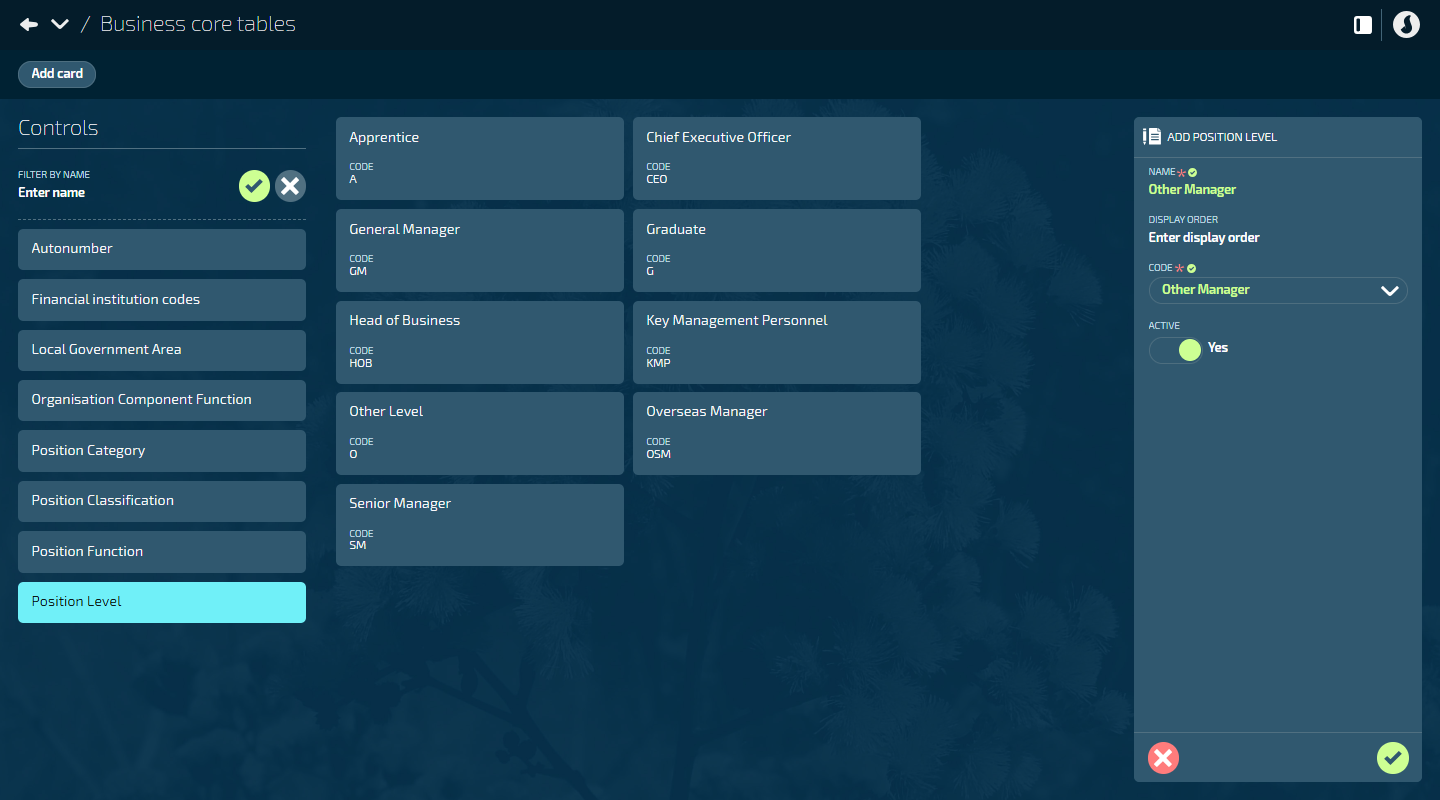
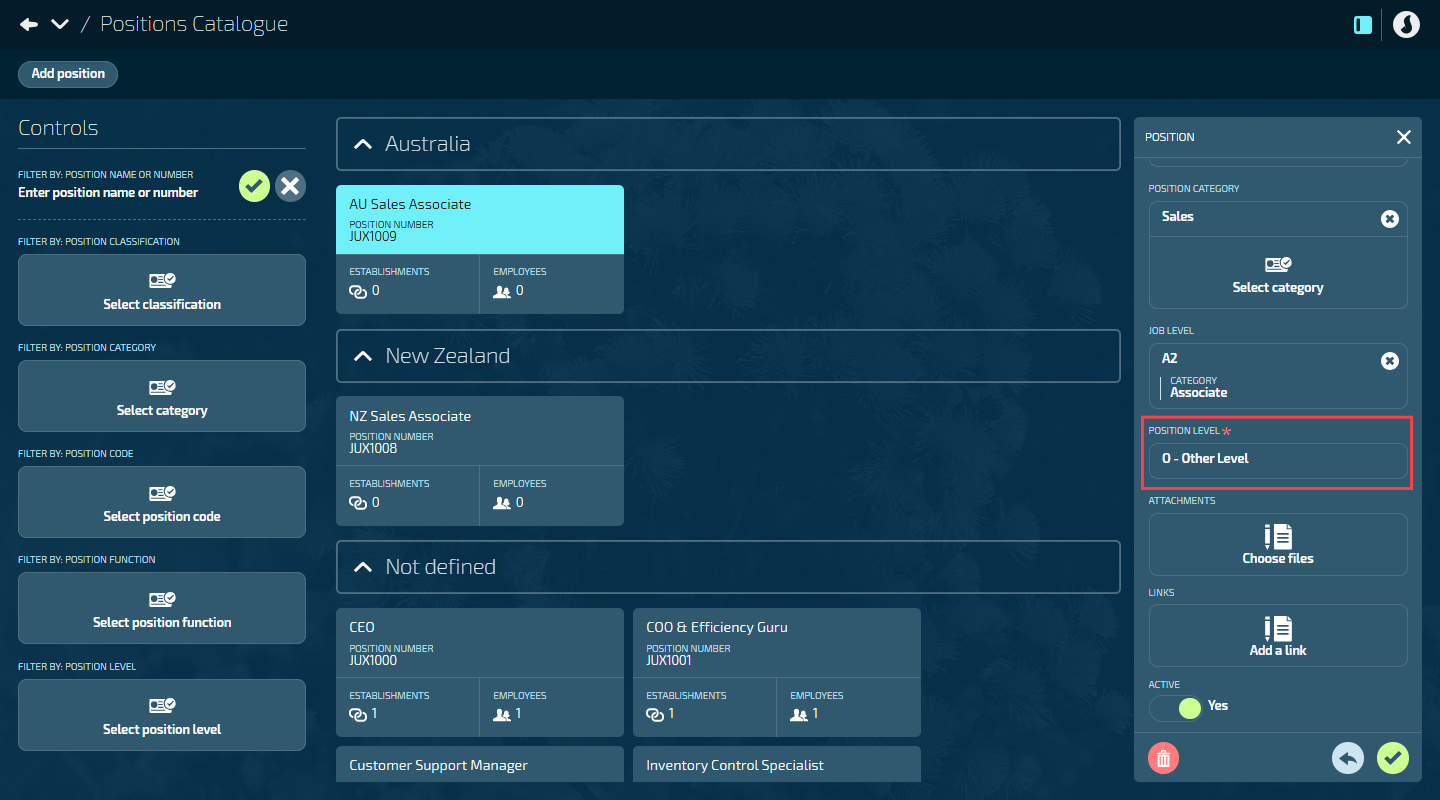
The Position Level core table connects to the Positions Catalogue. When adding or editing a position, you'll select a position level from the options you've set up here.
Assign one of ten position level codes to each position level
When adding a position level, select one of these codes:
Code | What it means |
|---|---|
CEO | Chief Executive Officer |
KMP | Key Management Personnel |
HOB | Head of Business |
GM | General Manager |
SM | Senior Manager |
OM | Other Manager |
OSM | Overseas Manager |
G | Graduate |
A | Apprentice |
O | Other Level |
Jemini comes pre-loaded with these 10 position level codes. You can create multiple position levels using the same code (for example, 'Department Manager' and 'Regional Manager' could both use the GM code).
How to add a position level
Go to Business > Business Core Tables.
Select Position Level from the list.
Select Add card to open the POSITION LEVEL panel.
Enter a NAME for the position level.
For example, 'Department Manager', 'Graduate Program', 'Senior Executive'.
Enter a DISPLAY ORDER number.
This determines where this position level appears in lists.
Select a CODE from the dropdown.
The dropdown shows all ten codes with their descriptions.
Set ACTIVE to Yes or No.
Set to Yes to make the position level immediately available in the Positions Catalogue.
Set to No if you want to configure it fully before making it available.
If inactive, the position level won't appear in the Position Level dropdown when adding positions.
Select the Green Tick Button to save the new position level.
Once saved, the position level displays in the core table with its assigned code.
How it connects to the Positions Catalogue
When adding or editing a position in the Positions Catalogue, select a position level from the options set up in this core table.
The code you assign determines how positions are classified in Jemini's reporting.
TIP
WGEA reporting for Australian organisations:
Position level codes determine occupational level reporting to WGEA:
All codes except O - Other Level are reported to WGEA
O - Other Level is for positions that don't need WGEA reporting, like regular employees who aren't managers, graduates, or apprentices
For example:
Position level 'Department Manager' with code GM means positions with this level are reported to WGEA as General Managers
Position level 'Regular Employee' with code O means positions with this level are not reported to WGEA
New Zealand organisations don't have WGEA reporting requirements but can use the position level codes to classify and track positions for internal reporting.