Who can benefit from this guide?
System Administrators and HR Administrators with the right permissions.
If you need access to Security Profiles, please speak to your system administrator or raise an iHelp through Infusion.
What you’ll find in this guide
For an indepth guide on Permissions, refer to How to configure Permissions.
Before you begin
Make sure you have:
Permission to create security profiles (typically System Administrator access)
A clear understanding of what access the new profile should have
Documentation of the role requirements
A test user account for verification
TIP: Spend time planning permission requirements before you start. It's easier to get it right the first time than to troubleshoot access issues later.
How to add a new Security Profile
Option 1: Create from scratch
Use this option when the profile is completely unique or very different from existing profiles.

Go to SYSTEM > SECURITY PROFILES.
Select Add security profile to open the ADD SECURITY PROFILE panel.
Enter the PROFILE NAME.
Use a descriptive name that identifies the role and access level.
Example: ‘Payroll Administrator’, ‘HR Coordinator - Read Only’, ‘Team Leader’.
Select an EMPLOYEE ACCESS level from the dropdown.
Choose the most restrictive level that allows the user to perform their role.
Refer to Security Profiles – Getting Started for detailed explanations of each level.
Set ACTIVE to Yes or No.
Set to Yes to make the profile immediately available for assigning to users.
Set to No if you want to configure it fully before making it available.
If inactive, the profile won’t appear in user assignment dropdowns.
(Optional) Configure REPORTS:
Use the REPORTS backpack to select specific reports this profile can access.
To learn more, refer to How to give users access to new reports.
Select the Green Tick Button to save the profile.
Jemini saves the security profile details and opens the permissions panel automatically. You can also open it later by selecting the profile card.
Option 2: Cloning an existing profile
Use this option when a similar profile exists and you want to use it as a template. It will clone all profile details and permissions, which you can then modify.
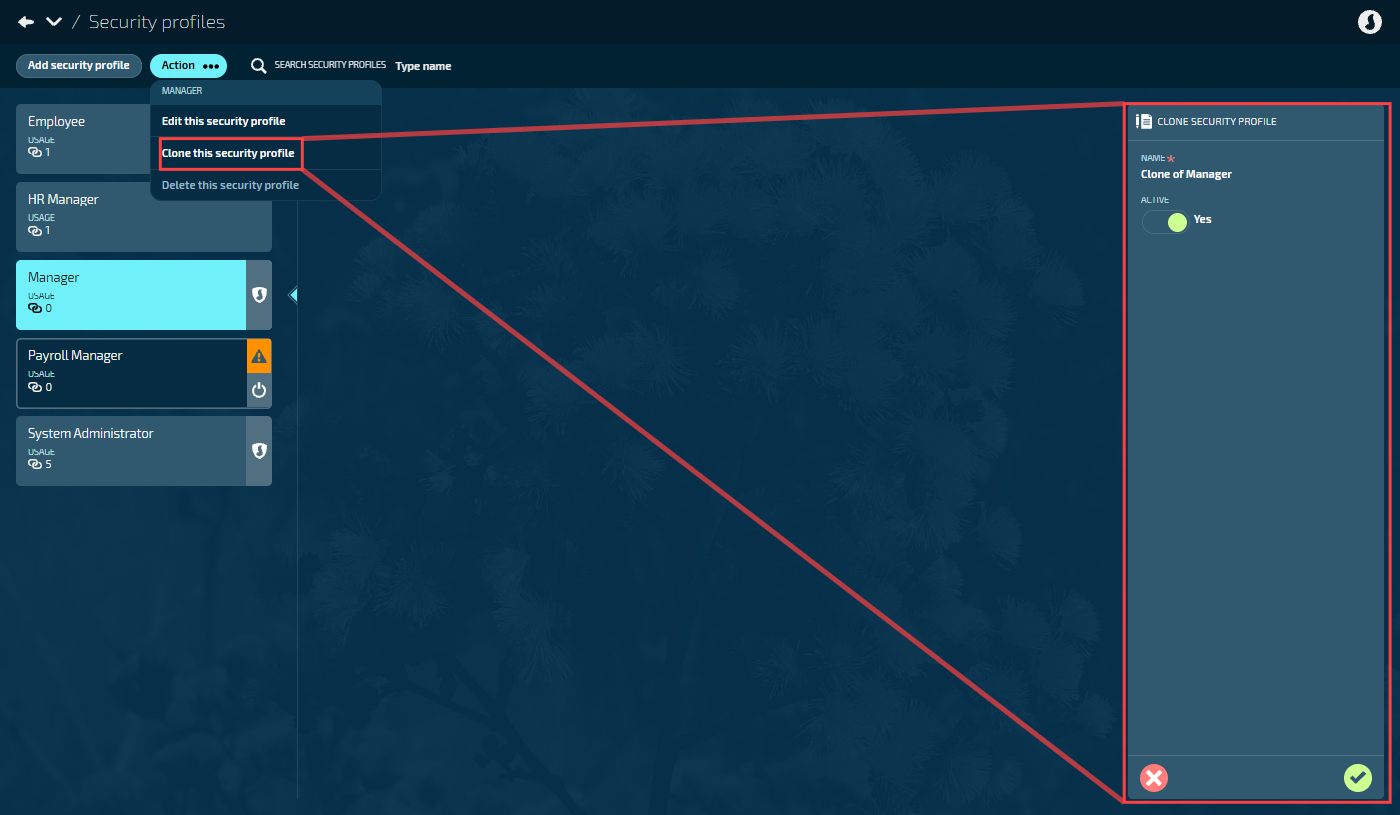
Go to SYSTEM > SECURITY PROFILES.
Find the security profile you want to use as a template.
Select the profile card to open it, then select Actions > Clone this security profile.
The CLONE SECURITY PROFILE panel opens with the template profile's details pre-filled.
Enter a new PROFILE NAME.
Must be unique and descriptive.
Example: If cloning ‘Manager’, you might name it ‘Team Manager’ or ‘Department Manager’.
Review and adjust the EMPLOYEE ACCESS if needed.
Jemini copies the employee access level from the original profile.
You can change it if your new role needs different employee visibility.
Review the ACTIVE setting.
Usually set to Yes so the profile is immediately available.
Set to No if you want to fully configure it before making it available to assign.
Review the REPORTS configuration.
Jemini copies the report assignments from the original profile.
You can modify them now or after creating the profile.
Select the Green Tick Button to save the cloned profile.
Jemini creates the new security profile and copies all permission settings from the template profile. You can modify them to match your specific requirements.
Configuring permissions
Once you’ve created a new security profile, the permissions panel will open. This is where you can control what functional areas users can access in Jemini.
To learn more, refer to How to configure Permissions.

How to edit a Security Profile
This section focuses on editing the profile details. If you want to edit permissions, refer to How to configure Permissions.
IMPORTANT
Changes to security profiles affect all users assigned to that profile immediately. If you're making significant changes, consider creating a new profile instead to avoid disrupting existing users.
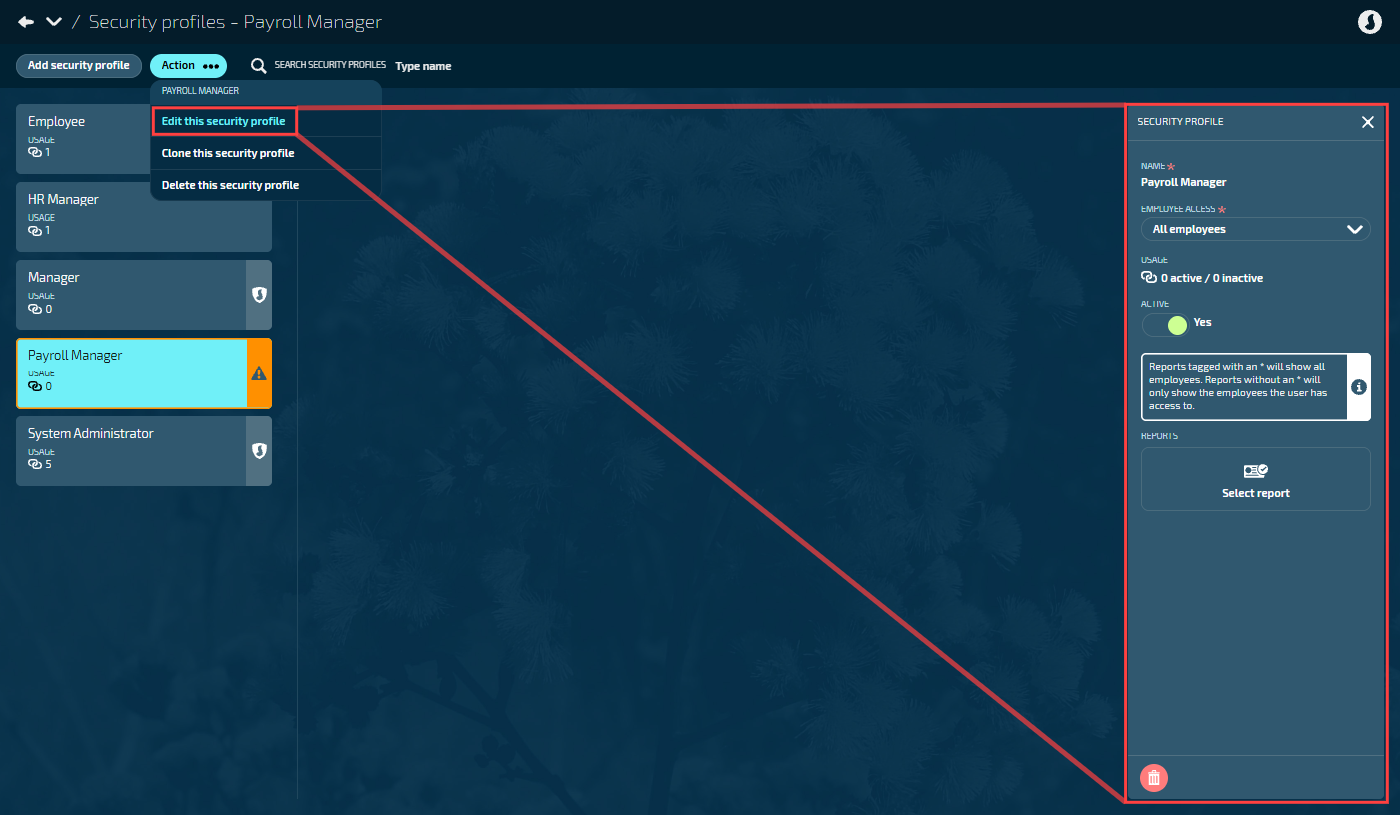
Editing custom profile details
Go to SYSTEM > SECURITY PROFILES.
Select the profile card to open it.
Select Action > Edit this security profile. The SECURITY PROFILE panel opens.
Make any necessary changes:
Name: Change to a more descriptive name (custom profiles only)
Employee Access: Adjust the visibility level
Active: Toggle between Yes and No
Reports: Modify which reports this profile can access
TIP
If the profile is already in use, you can only edit report access.
Select the Green Tick Button to save your changes
Editing system profile details
System profiles (Employee, Manager, System Administrator) have restrictions:
You CAN modify:
Report assignments
You CANNOT modify:
Profile name
Employee Access level
Active status
You also can’t delete system profiles.
TIP
If you need different settings, clone the system profile to create a custom variant that you can fully configure.
Editing permissions
If you need to edit the security profile’s permissions, not the profile details, simply open the security profile card to display the permissions panel.
Tick or untick the various Enable, View, Add, Change, and Delete boxes to grant or remove access, then select the Green Tick Button to save.
To learn more, refer to How to configure Permissions.
How to deactivate or delete a Security Profile
When you deactivate a profile, it remains in Jemini but becomes inactive and can’t be assigned new users. Use this option when the profile is no longer needed but you want to keep the configuration for reference or when the role is temporarily on hold or you want to gradually phase out the existing profile and replace it with a new one.
When you delete a profile, it’s permanently removed from Jemini. All configration and permission history is lost. Use this option if you’ve created the profile by mistake or you’re absolutely certain your organisation will never need the profile again.
TIP
When in doubt, deactivate rather than delete. You can always delete later, but you can't undelete.
How to deactivate a security profile
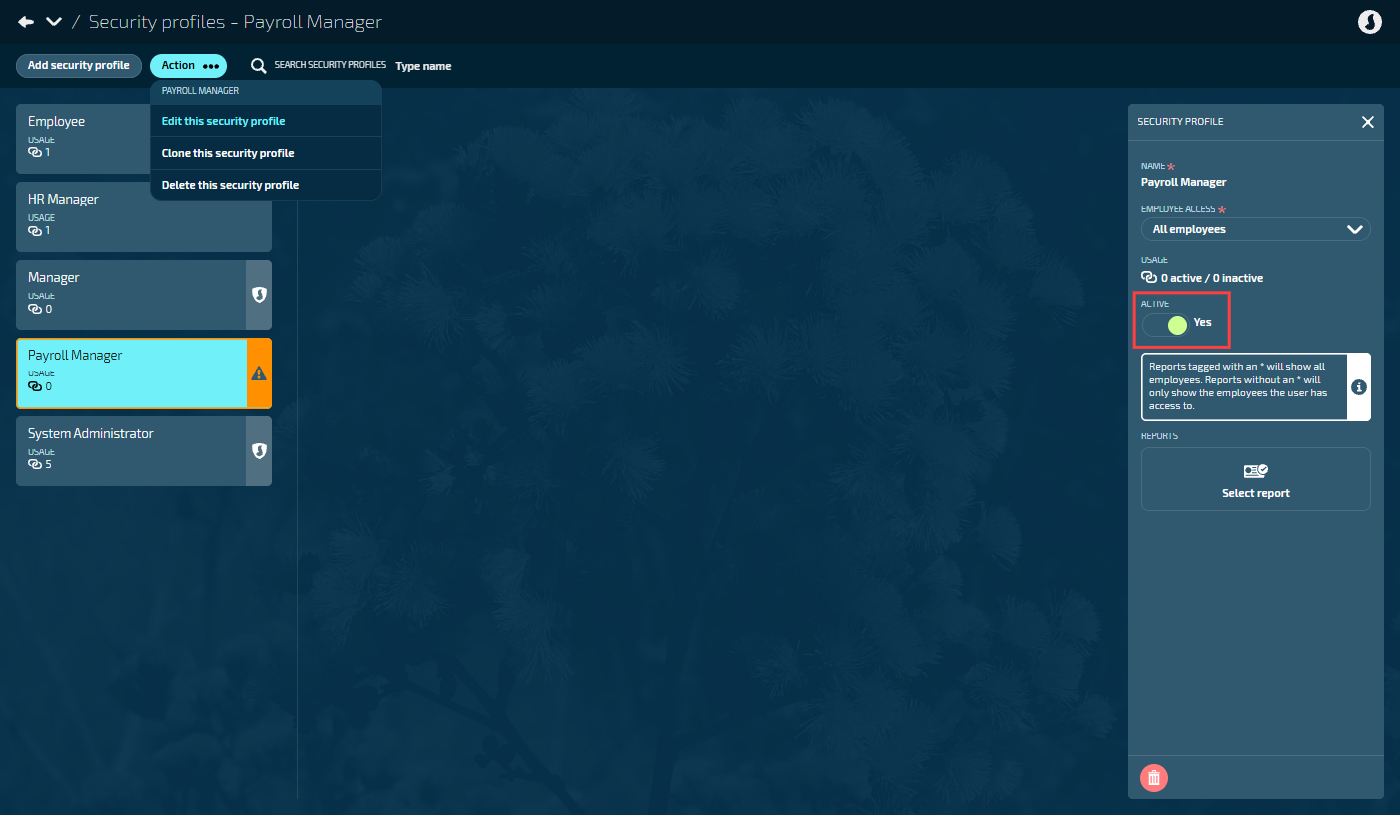
Checking if the profile can be deactivated
Go to SYSTEM > SECURITY PROFILES.
Select the security profile card you want to deactivate.
Select Action > Edit this security profile. The SECURITY PROFILE panel opens.
Review the USAGE information in the profile details:
Users Active: Number of active users currently assigned this profile
Users Inactive: Number of inactive users who previously had this profile
If Users Active = 0: The profile can be deactivated immediately.
If Users Active > 0: You need to reassign those users to different profiles first.
Reassigning users before deactivation
If active users exist:
Go to SYSTEM > USER PROFILES.
For each user with the profile you want to deactivate:
Select the user profile card.
Open the SECURITY PROFILE backpack.
Select a different appropriate security profile.
Save the changes.
Return to SYSTEM > SECURITY PROFILES to deactivate the now-unused profile.
Deactivating the profile
Go to SYSTEM > SECURITY PROFILES.
Select the security profile card you want to deactivate.
Select Action > Edit this security profile. The SECURITY PROFILE panel opens.
Set ACTIVE to No.
Select the Green Tick Button to save.
You’ve now deactivated the Security Profile. The profile:
Remains visible in the Security Profiles list (marked as inactive).
Can't be assigned to new users.
Doesn't appear in the User Profile security profile selection dropdown.
Has all configuration preserved.
Can be reactivated by setting Active to Yes.
How to delete a security profile
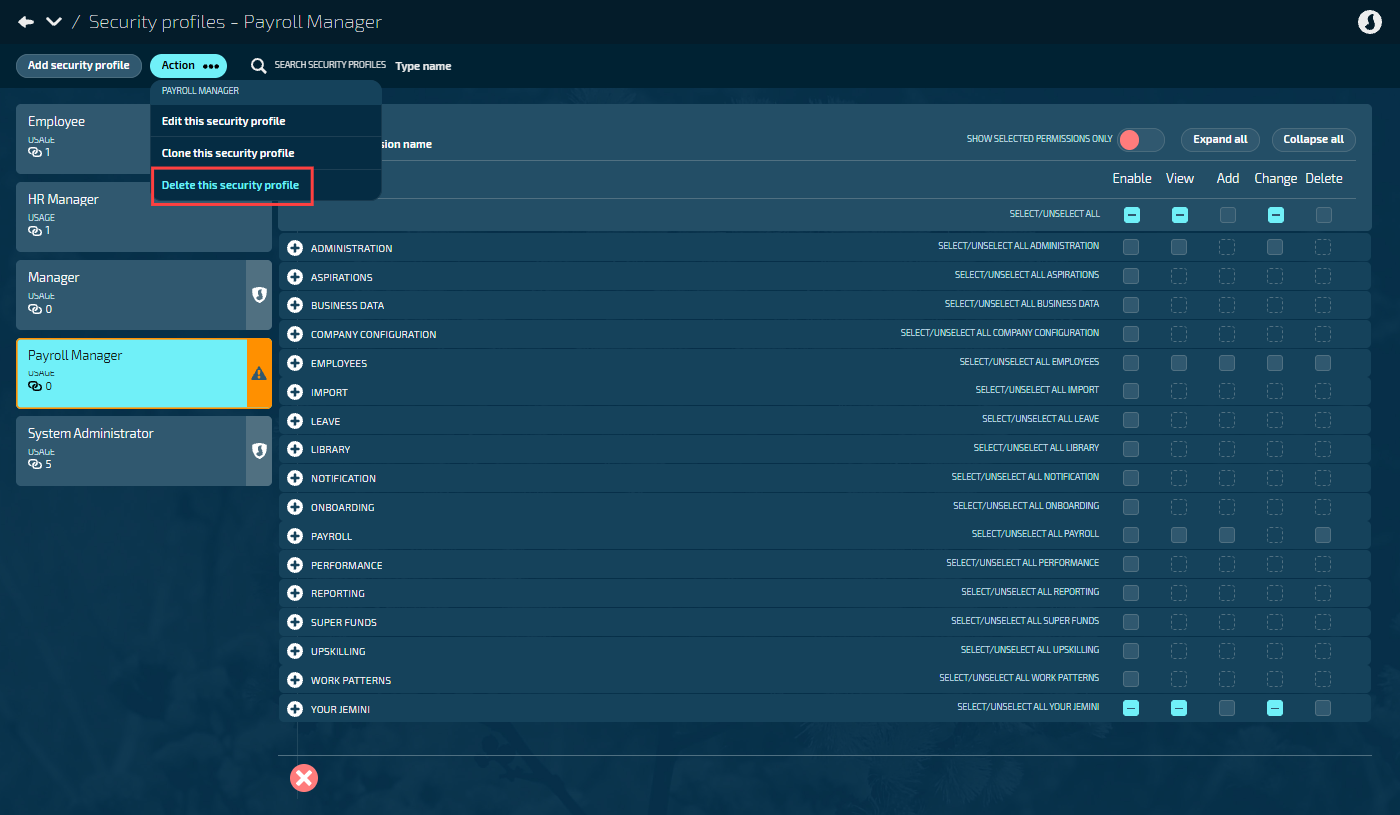
Checking if the profile can be deleted
Go to SYSTEM > SECURITY PROFILES.
Select the security profile card you want to delete.
Check the system profile indicator:
If it says ‘System Profile’, you cannot delete it.
If there's no system profile indicator, it's a custom profile and can be deleted.
Review the USAGE information:
Users Active: Must be 0.
Users Inactive: Can be any number, but consider if historical data is important.
Requirements for deletion:
Must be a custom profile (not a system profile).
Must have zero active users assigned.
Profile must not be currently in use.
If the profile has assigned users (active or inactive), you'll need to decide:
If only inactive users: You can delete, but you'll lose the historical record of what access those users had.
If active users exist: Reassign them first (see ‘Reassigning users’ section above).
Deleting the profile
Go to SYSTEM > SECURITY PROFILES.
Select the security profile card you want to delete.
Select Action > Delete this security profile.
If the Delete option is greyed out (disabled), check:
Is this a system profile? (Cannot delete).
Does it have active users? (Reassign them first).
Has it been used in audit records? (Consider deactivating instead).
A confirmation message will appear asking if you're sure.
Select Go ahead to permanently delete the profile.
Or select Go back if you've changed your mind.
Jemini permanently removes the security profile.
IMPORTANT
You can’t undo deletion. If you're unsure, deactivate the profile instead.