Security profiles control what users can see and do in Jemini
Use Security Profiles to set which areas users see, what actions they can take, which employees appear in their view, and which reports they can access.
Who configures security profiles:
System Administrators
HR Administrators with the right permissions
Security profiles have three key parts that work together: profile details, permissions, and report access
Profile details
The profile's name, employee access level, and active status. This is the foundation of your security profile.

Permissions
A hierarchical tree that organises permissions by categories like Administration, Employees, Payroll, and Leave. Each permission has up to five options: Enable, View, Add, Change, and Delete.

Report access
Access to Jemini’s range of Power BI reports lets users view, analyse, and export employee and company data in these areas: Pay, People, Business, System, Upskilling, and Onboarding.

System profiles vs custom profiles

TIP
A warning symbol on a profile card means the profile has no permissions configured. Users assigned to this profile won't have access beyond what Jemini automatically grants.
.png)
Jemini includes three system profiles that you can't delete or rename:
Employee: Basic access to personal information
Manager: Access to direct reports and team management
System Administrator: Full access to configure and manage Jemini
You can modify permissions in system profiles, but you can't delete them or change their core identity. This protects your organisation from accidentally removing critical access profiles.
Custom profiles are security profiles you create for your organisation's specific needs. Modify, deactivate, or delete these profiles as your organisation changes.
TIP
Instead of modifying a system profile, clone it to create a custom variant that matches your specific requirements.
‘Employee Access’ controls which employees a user can see and manage in Jemini

Each security profile has employee access controls.
None: Users see only their own information
All employees: Users see everyone in the organisation
Direct reports: Users see employees who report to them directly (based on Position Chart)
All reports: Users see all employees in their reporting line, not just direct reports.
Permissions have five access options for each category

Enable: Turns on access to a functional area (bubble). Without Enable, users can't see that bubble at all.
View: Allows users to see records but not change them.
Add: Allows users to create new records.
Change: Allows users to edit existing records.
Delete: Allows users to remove records.
To activate View, Add, Change, or Delete tick boxes, you need to tick Enable first.
Some permissions have dependencies which Jemini handles automatically. For example, if you grant Add, Change, or Delete permissions, Jemini will tick the required View permission for you.
Expand the categories by selecting the + icons to reveal more permission options. For example, within the Security category, you can give a user permission change security profile records, but not change security profile permissions.
Initial access and setup
How to grant a user access to configure Security Profiles
IMPORTANT
Granting change access to security profiles gives users significant control over system access. Only assign this permission to trusted administrators.
Go to SYSTEM > SECURITY PROFILES.
Select the security profile that needs access.
In the Permissions tree, expand ADMINISTRATION, then expand SECURITY.
Tick the Enable box to activate the Security Profiles application.
Tick the View and Change boxes in the Security Profile Permissions as needed:
View: See existing security profiles permissions.
Change: Modify permissions in existing profiles.
Tick the View, Add, Change, and Delete boxes in the Security Profile records as needed:
View: See existing security profiles and their configuration.
Add: Create new custom security profiles.
Change: Edit existing custom security profiles.
Delete: Remove custom security profiles (not system profiles).
Select the Green Tick Button to save your changes.
Assigning the Security Profile to users
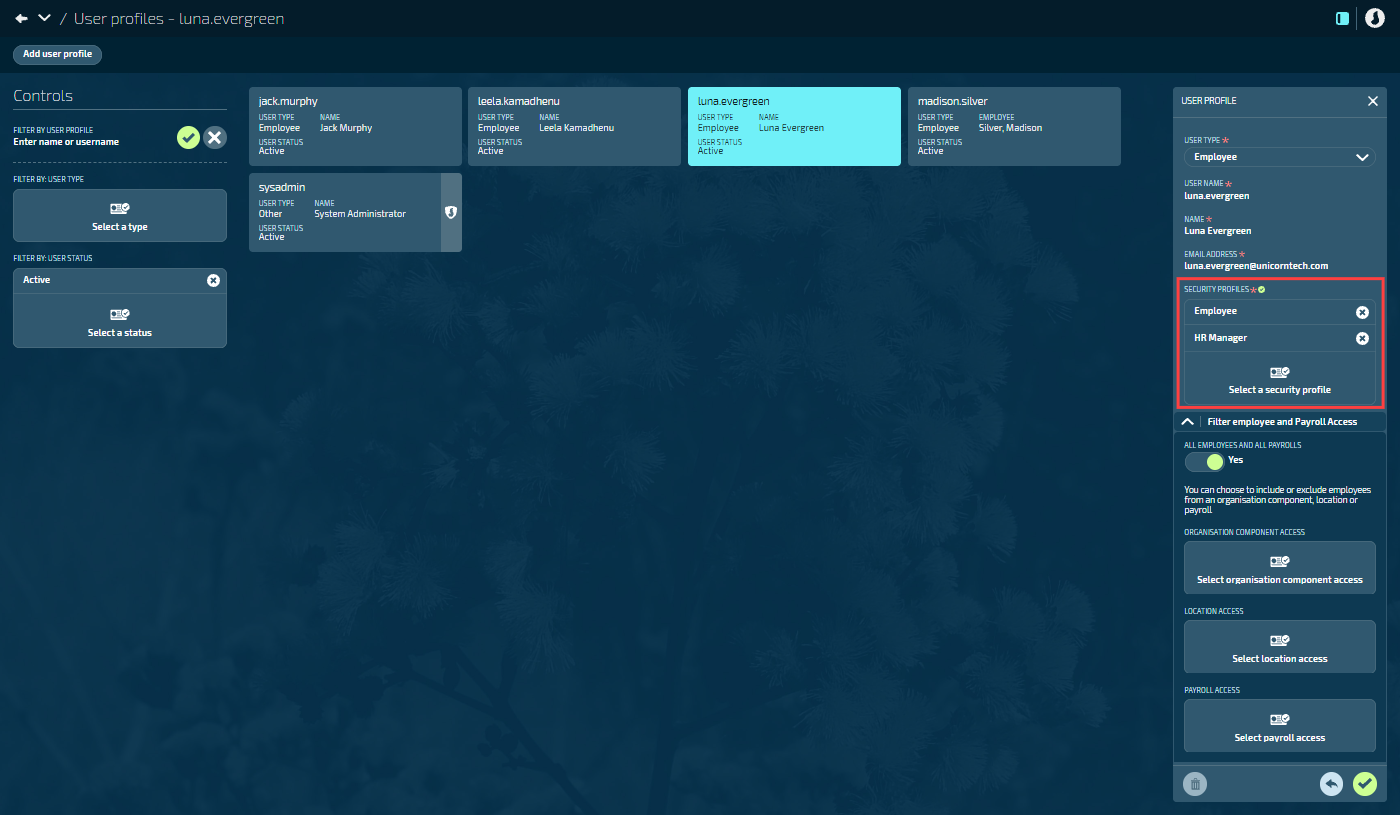
Go to System > User Profiles to assign the new security profile to user accounts. You can assign more than one profile.
When a user has multiple security profiles, their permissions and employee access combine to give them the highest level of access from any profile. Jemini can't currently apply different permissions to different employee groups on the same user profile.