Who can benefit from this guide?
HR & payroll staff who have access to Super Funds and are responsible for adding and managing these records.
This guide specifically focuses on Australian super funds. If you're adding a New Zealand super fund, refer to Intro to Super Funds catalogue (New Zealand).
System Administrators: Open to view permission settings
To give a user access to the Super Funds bubble:
Go to System > Security profiles.
Select the Security Profile that requires access to the Super Funds bubble.
In Permissions, scroll down and expand Super Funds to find the Super Fund application and Super Fund record permissions.
Tick the Enable, View, Add, Change, and Delete boxes for Super Funds.
If you need help, reach out to our support team: raise an iHelp through Infusion.
Australian superannuation funds, commonly known as super funds, are long-term savings plans designed to provide financial support during retirement. Employers contribute a percentage of an employee’s income to their super fund, which is then invested to grow over time.
The Super Funds catalogue, found in the People bubble, lists all the super funds available to employees. You can add super funds to this catalogue and then link them to employees in the employee application. To learn how to link a super fund to an employee, refer to Intro to Super Fund (Australia only).
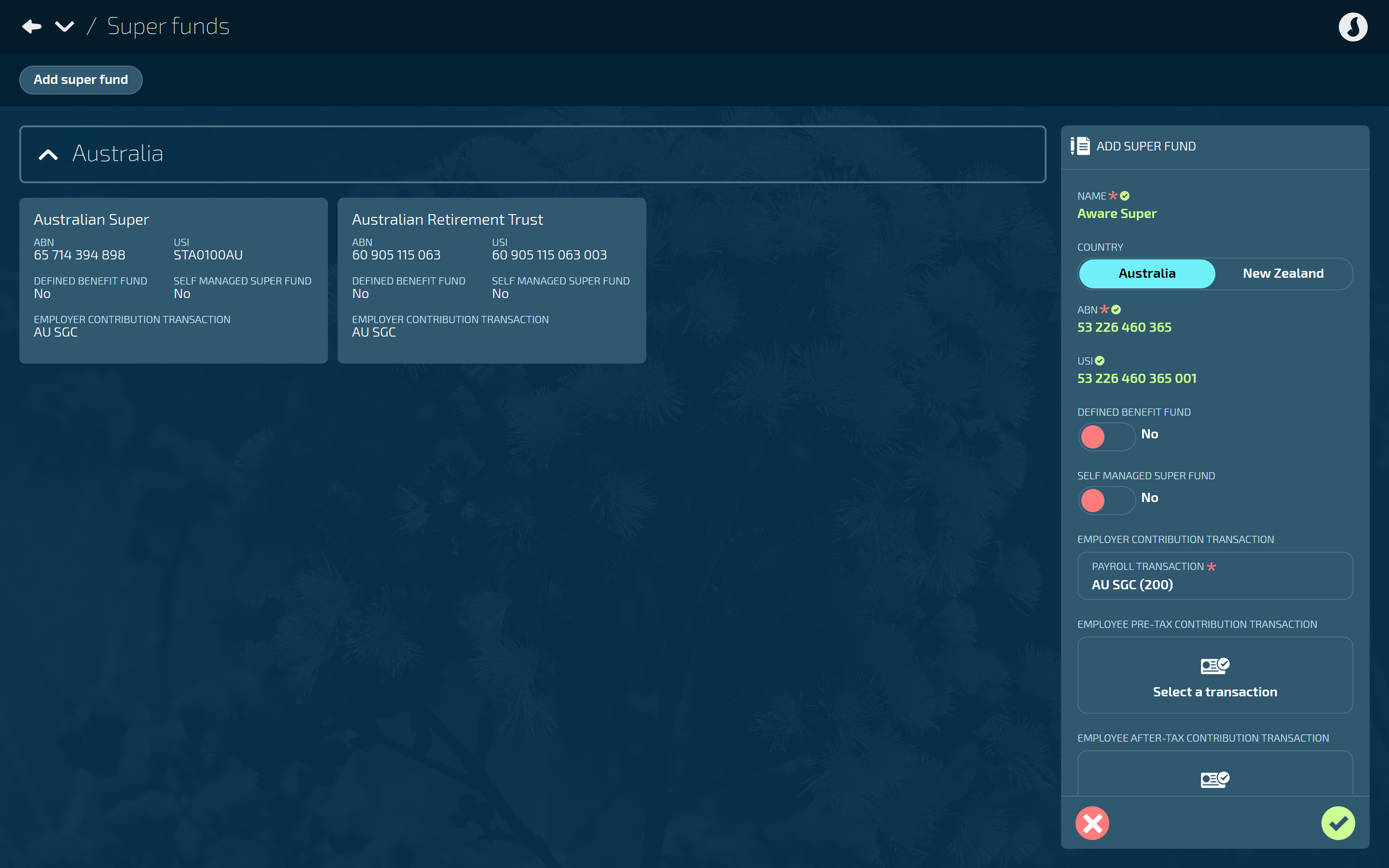
How to add an Australian super fund
Go to People > Super Funds.
Select ADD SUPER FUND to open the ADD SUPER FUND panel
Enter the super fund’s NAME.
For COUNTRY, select Australia.
Enter the super fund’s ABN (Australian Business Number).
(Optional) Enter the super fund’s USI.
Each superannuation fund has a Unique Superannuation Identifier (USI).
Include it to make sure super contributions go to the correct fund.
Find the USI on the super fund provider's website or by contacting them directly.
Set DEFINED BENEFIT FUND to Yes or No.
Default is No.
Set to Yes if the super fund is a defined benefit fund. This type of super fund will calculate retirement benefits using a formula that considers factors such as years of service and final average salary, rather than being solely based on contributions and investment earnings.
NOTE: Jemini does not currently support defined benefit funds.
Set SELF MANAGED SUPER FUND to Yes or No.
Default is No.
Set to Yes if the super fund is self managed by the employee. This will unlock new settings that you will need to enter, including the fund’s bank account name, bank BSB number, bank account number, and electronic service address (ESA).
The EMPLOYER CONTRIBUTION TRANSACTION is pre-set to your organisation's default.
This transaction calculates the employer's mandatory super guarantee contribution.
Change this if the super fund needs a different transaction, or remove it if this contribution type doesn't apply to this fund.
(Optional) The EMPLOYEE PRE-TAX CONTRIBUTION TRANSACTION is pre-set to your organisation's default.
This transaction calculates employee contributions taken from their salary before tax is applied (salary sacrifice).
Change this if the super fund needs a different transaction, or remove it if employees won't make pre-tax contributions to this fund.
(Optional) The EMPLOYEE AFTER-TAX CONTRIBUTION TRANSACTION is pre-set to your organisation's default.
This transaction calculates employee contributions taken from their salary after tax has been applied (voluntary contributions).
Change this if the super fund needs a different transaction, or remove it if employees won't make after-tax contributions to this fund.
TIP
You can set both pre-tax and after-tax transactions for each super fund. Jemini will use the appropriate one for each employee based on their 'Employee Contribution is Salary Sacrificed' setting.
(Optional) The ADDITIONAL REPORTABLE EMPLOYER SUPER CONTRIBUTION (RESC) TRANSACTION is pre-set to your organisation's default.
This transaction tracks additional employer super contributions above the mandatory SGC that need to be reported on the employee's payment summary for tax purposes.
Change this if the super fund needs a different transaction, or remove it if this fund won't have reportable employer super contributions.
Select Green Tick Button to save and close the panel.
How to edit an Australian super fund
IMPORTANT
Once the pay cycle process has reached the direct credit point, the super fund can no longer be edited, as it will interfere with processed calculations.
You may be able to edit a super fund during the pay cycle process before the direct credit file is generated, but you'll need to recalculate the pay if any changes are made to make sure they're included in the pay.
Go to People > Super Funds.
Select the super fund record you want to edit to open the SUPER FUND panel.
Enter new super fund information into the fields as required. For detailed instructions on each setting, refer to the relevant steps in How to add an Australian super fund above.
Select Green Tick Button to save and close panel.
How to delete an Australian super fund
IMPORTANT
Once the pay cycle process has reached the direct credit point, the super fund can no longer be deleted, as it will interfere with processed calculations.
Go to People > Super Funds.
Select the super fund record you want to delete to open the SUPER FUND panel.
Select the Delete Button to delete the record.
Select Go ahead when the confirmation message appears.
Next steps: Adding super funds to employee records
You can add super fund records to employees by following Intro to Super Fund (AU).
Employees can add their own super fund records if your administrator has given them access. See Intro to Super Fund (AU) - Your Jemini.